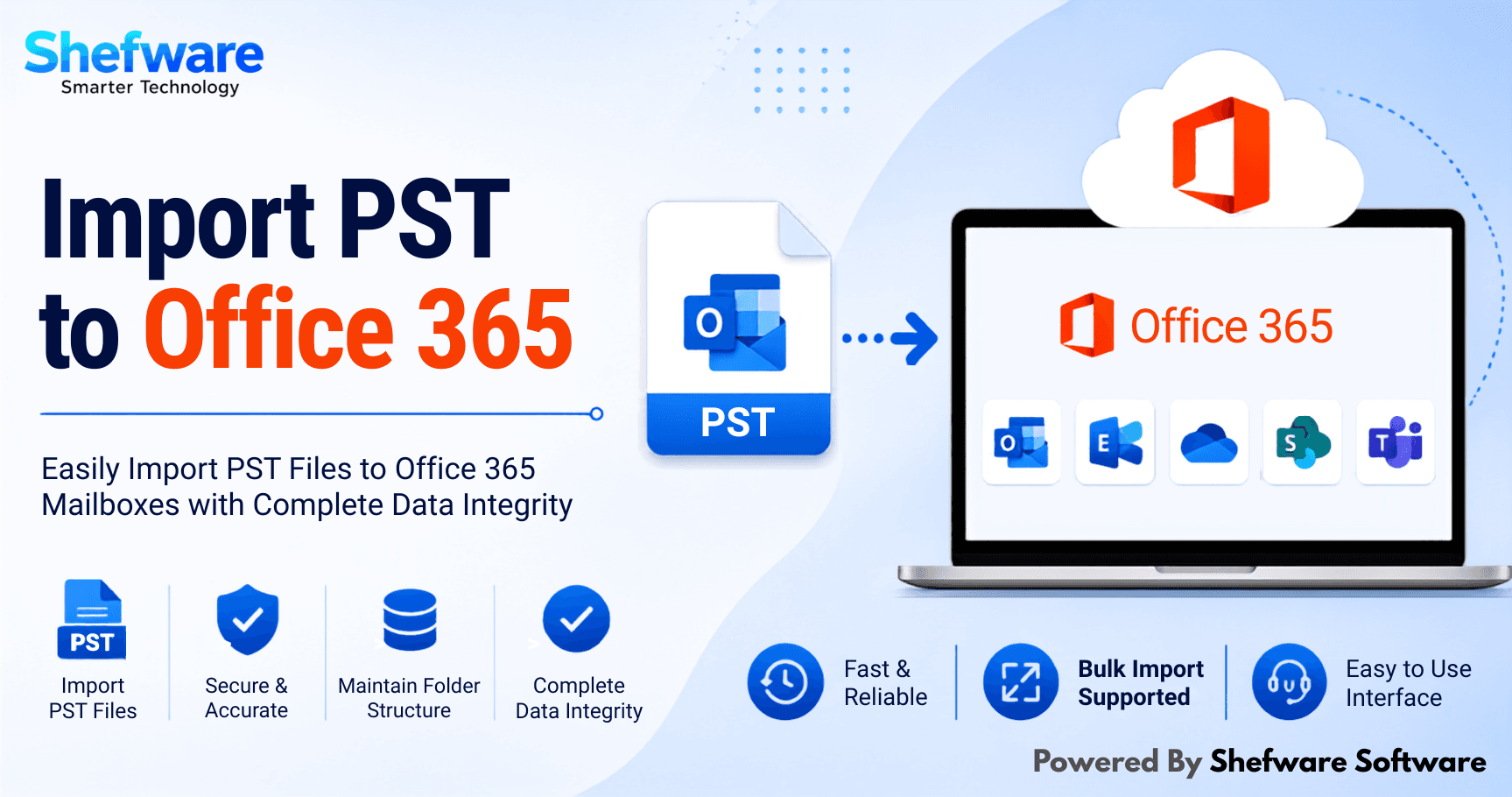
Many people and businesses are migrating from desktop Outlook to Office 365 in the cloud for improved security. But the process of migrating data is not as simple as logging into an account if all your necessary emails, contacts, calendars, tasks, and notes are stored in the PST file. You are required to import your PST files to Office 365.
In this blog, we will guide you through how we can import PST to Office 365 with the help of manual methods as well as professional methods.
The office 365 import pst file is the process of moving your Outlook PST file that includes contacts, calendars, and emails into Office 365 cloud mailboxes. The entire process provides centralized data, enhanced security, and access to the device from anywhere. It also removes the risk of corrupting the Outlook data file.
Now, below, let’s get to know deeply about the PST and Office 365 in detail explanation:
PST File: The PST file stands for Personal Storage Table, a file format utilized by Microsoft Outlook to gather a local copy of emails, tasks, calendars, contacts, and events. They are mainly utilized for archive, backup, and export data to maintain mailbox size and are also known as the Personal Folders.
Microsoft Office 365: Office 365 offers a wide range of productivity tools that include Word, Excel, Teams, PowerPoint, OneDrive, Outlook, and many more. You can install the Microsoft Office tool on your system, and are ideal for mobile phones and tablets as well.
There are various reasons why there is a need for a PST file import tool. Let’s see some of the reasons below:
There are various methods to migrate PST to Exchange, and they are divided into two types of methods: Manual and professional. Now, let’s get to know about them in detail:
Microsoft offers a free approach for importing PST files into Office 365 mailboxes. You just need to follow a few steps to know about the manual method:
Talking about the manual methods, these methods have some disadvantages that you need to know:
If you do not want to face the above-mentioned disadvantages, you can use a professional method with the help of our Shefware Import PST to Office 365 tool to work without any limitation. Our tool is an upgraded and user-friendly solution developed to import Outlook PST files into Office 365 accounts without data loss. Our tool interface is user-friendly and has a smooth running.
Here are a few steps to follow to utilize our Import PST to Office 365 tool. Given below are the details:
First, you need to download or install our best PST import tool for Office 365 to migrate all the data. Our installation process is simple and quick.
Now, upload pst to office 365, automatically or manually, in a very smooth way. Press the " Add file” option to browse PST files from the system. You can also choose the single file or the huge file.
Our tool offers a developed preview feature that permits viewing all mailbox data before the migration process begins. Data includes attachments, emails, calendars, contacts, folder sequence, and others.
Now, fill in your Office 365 details to build a safe connection. The tool utilizes a new authentication process to make sure login information stays secure.
If you are moving several PST files, you can map every PST file to a particular Office 365. This feature is particularly for administrators managing numerous user accounts, offering precise data.
Use the upgraded filters, and can move data as per the date range, particular folders, or excluded items. This limits the migration and makes sure only similar data is movable.
Now, click on the Migrate to start the import process. The tool safely imports PST files into Office 365 without the loss of data. You can check the progress and see detailed reports.
In the above blog, we have discussed the two methods in detail, which are manual and professional for office 365 mailbox import. One way is the manual method, which is free but has some limitations. On the other hand, the professional method involves using reliable software for import PST file to Office 365. So, download our tool by visiting our official website.
Yes, absolutely, with the help of our Shefware Import PST to Office 365 tool that supports bulk import pst to exchange online migration, in which a huge number of PST files get imported easily to Office 365.
Yes, our tool provides the best security while importing the PST file to Office 365. We support end-to-end encryption, no retention policy, and much more.
Our tool is providing various advanced filters, such as date (From and To), a checklist that you want to select, and time for scheduling.