Protect Gmail Emails with Fast and Secure Backup Software.
Backup Gmail emails, contacts, and calendars securely with Shefware Gmail Backup Software. Save Gmail data to PST, PDF, MBOX, EML, MSG, and more formats easily
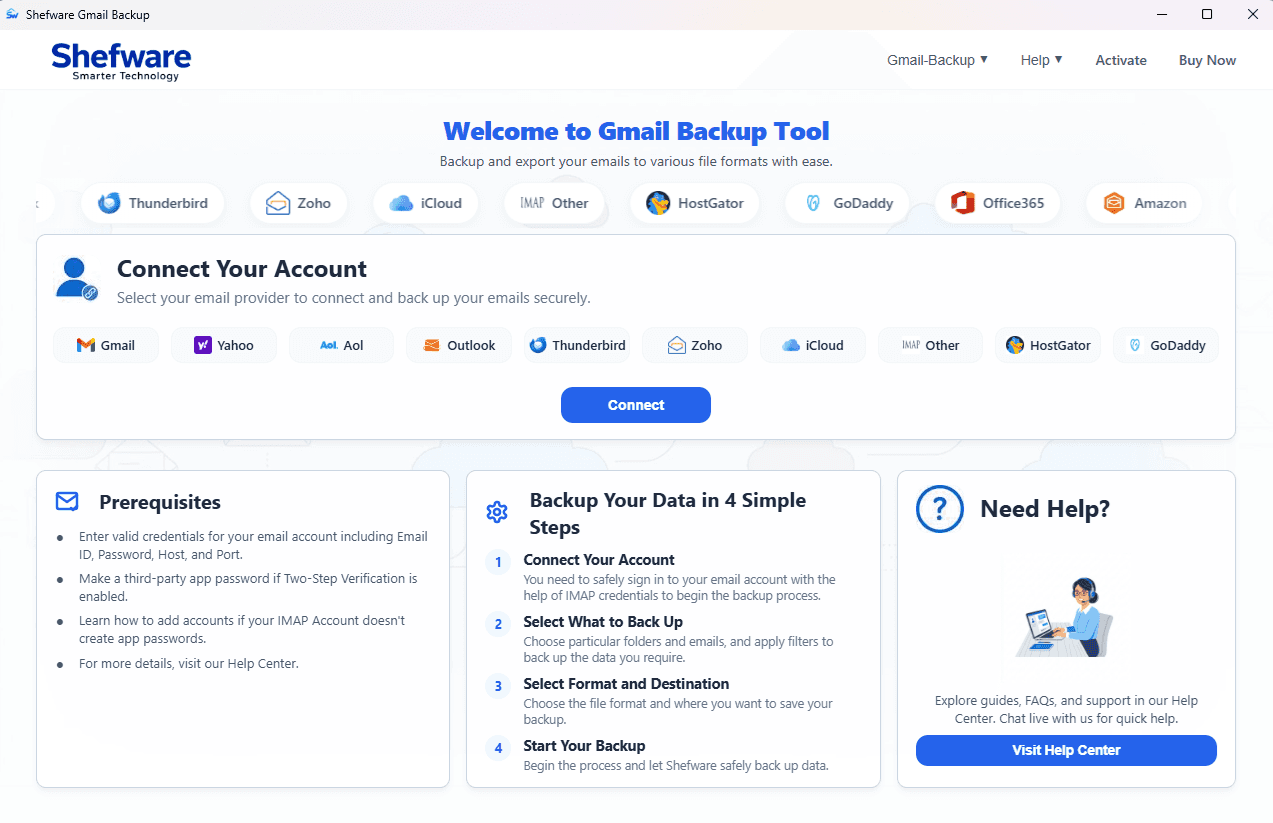
Ensures complete safety and data integrity throughout the backup process:
Uses Secure Sockets Layer (SSL) to establish an encrypted connection between the system and server.
Converts the credentials into a secure, unreadable format to prevent unauthorized access.
Ensures that all mailbox data is stored on the user’s system and not saved anywhere, in accordance with the no-retention policy.
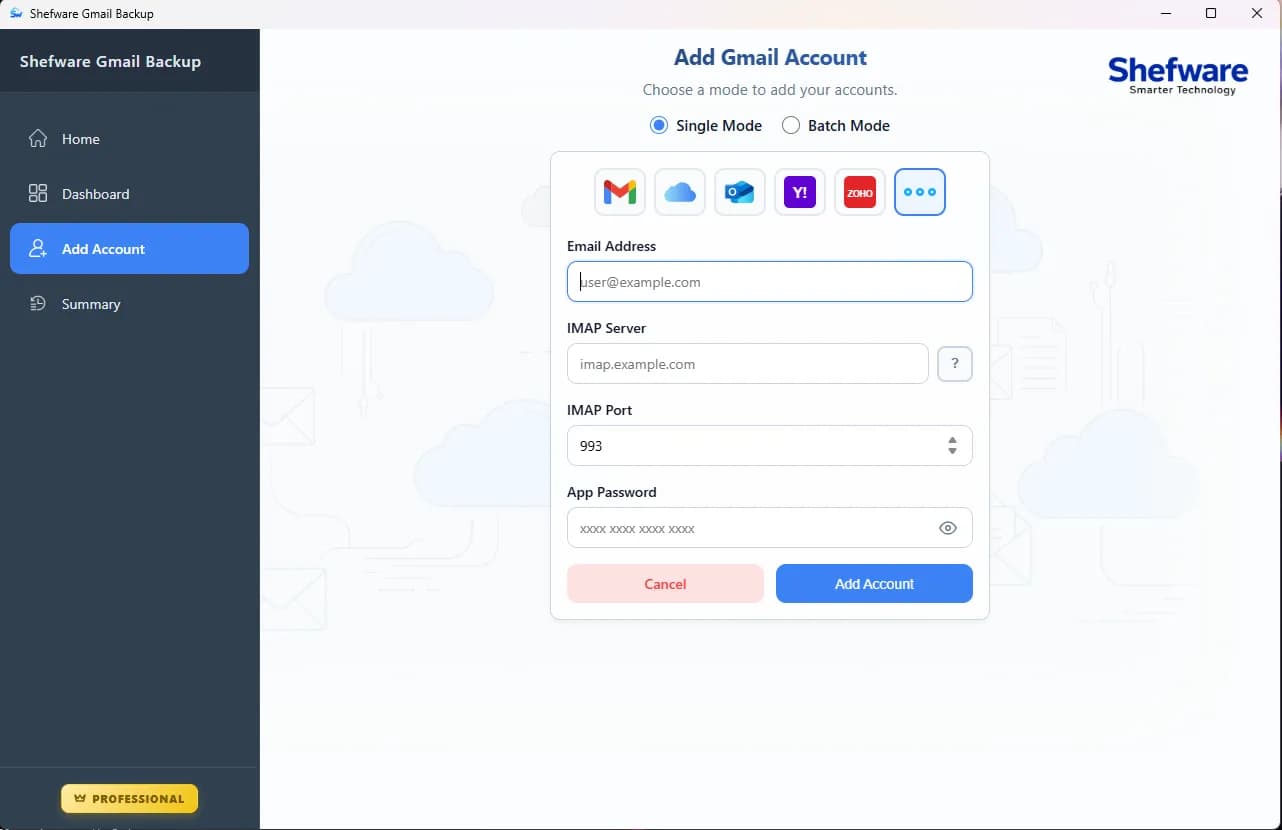
The professional Gmail Backup Tool securely backs up Gmail Emails, Calendars, and contacts locally on the device using
Enables users to easily save Gmail as PDF, PST, EML, MSG, MBOX, MHT, HTML, DOCX, DOC, and CSV formats using the Gmail Backup Software.
Access the backup history to track the status of the previous successful or failed backup attempts.
Ensures the entire backup process is safe and secure, and we do not retain any data during the backup.
Provides an incremental backup that allows the user to selectively back up their data so that for the next backup, the tool can skip the backed-up data.
Features a date range filter in the Gmail Email Backup Tool, enabling backup of mailbox data within a selected time period for precise control over email selection.
Offers 50 emails per folder as a free trial for users to evaluate the tool before buying it.
Provides advanced filter options in the form of include/ exclude attachments, split PST, create a PST folder (for PST format only), and incremental backup mode.
Preserve and maintain the entire mailbox hierarchy, layout, and structure in the original format after the backup process completes.
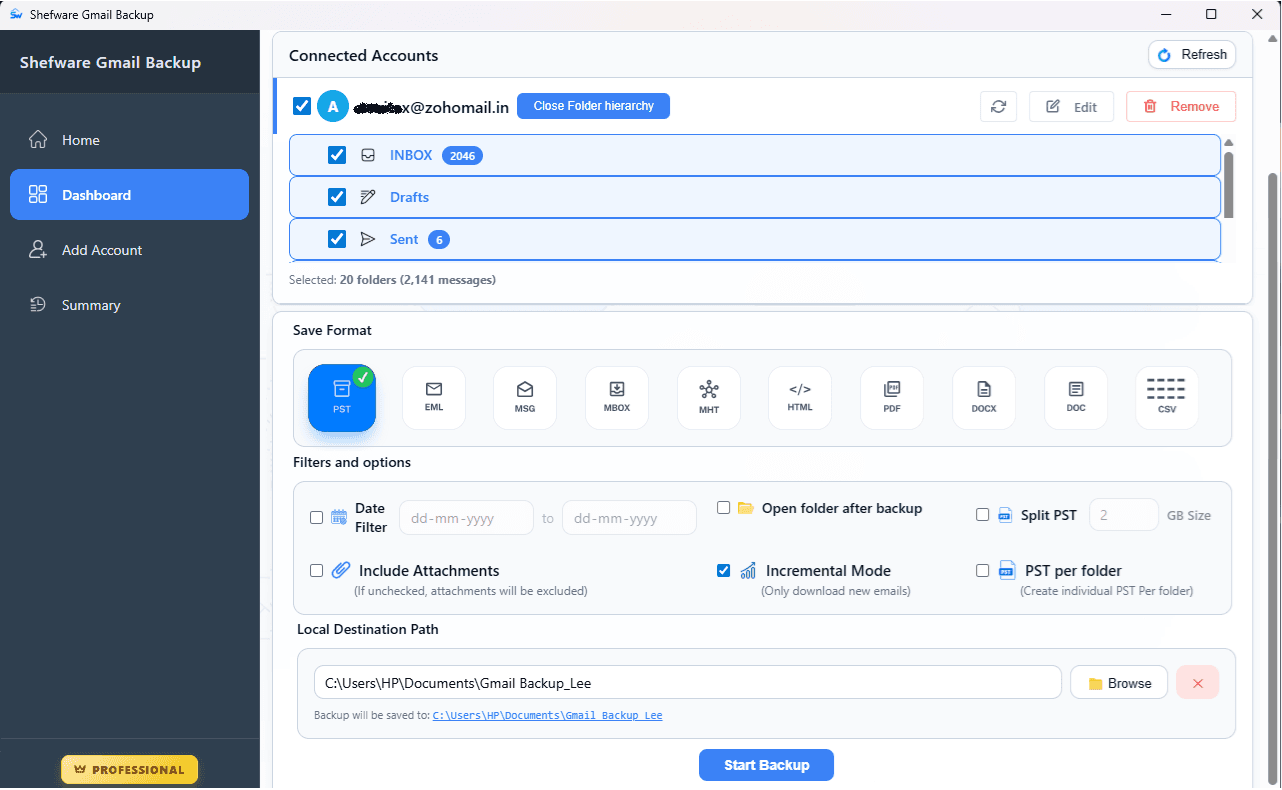
Watch our step-by-step video tutorial to understand how the software works and get started quickly.
Allows users to securely back up and restore Gmail following a structured process:
Download Free Demo & Check System Requirements
Size: 147.73 MB
Version: 1.0.0.1
Hard Disk
1 GB space required
RAM
Minimum 4 GB RAM (Recommended 8 GB)
Processor
Intel(R) Core(TM) i3-4160 CPU @ 3.60GHz or above
Operating System - Windows 11 / 10 / 8.1 / 8 / 7 (32 & 64 Bit) , Window Server 2025 / 2022 / 2019 / 2016 / 2012 R2 / 2008 R2
Shefware Gmail Archiver Tool made backing up the corporate Gmail accounts straightforward. The Gmails are automatically backed up and restored securely and quickly.
Systems Administrator
Shefware Gmail Backup Tool is a tool that backs up Gmail accounts and the entire mailbox data locally on local devices safely and securely.
The Gmail Backup Tool allows users to easily execute the backup process through the easy instructions provided on the tool itself. Therefore, users don’t really need to have technical knowledge while using the tool.
Users can easily save their Gmails in file formats such as PST, EML, MSG, MBOX, MHT, HTML, PDF, DOCX, DOC, and CSV.
Yes, the Gmail Backup Tool ensures that the user data is secured and protected during and after the backup process.
Yes, definitely, Best Gmail Backup Tool offers backup in multiple formats such as PST, EML, MSG, MBOX, MHT, HTML, PDF, DOCX, DOC, and CSV. Users can back up their emails to PST in a single process.
Yes, the professional Gmail Backup Tool easily backs up and restores the attachments with the mailbox folders. The attachments filters enable the user to include or exclude the attachments from the emails.
Follow these steps to back up Gmail to external hard drive:
1. Download and Install the Shefware Gmail Backup Tool.
2. Add an account through either single mode or batch mode.
3. Select particular file format and the mailbox data to be exported.
4. Add filters and choose a specific destination location.
5. Click on Start Backup to initiate the process.
6. Go to the backup history where you can track the status of the file location.
Yes, users can download the Gmail emails using the Shefware Gmail Backup Software after saving and archiving the entire mailbox data.